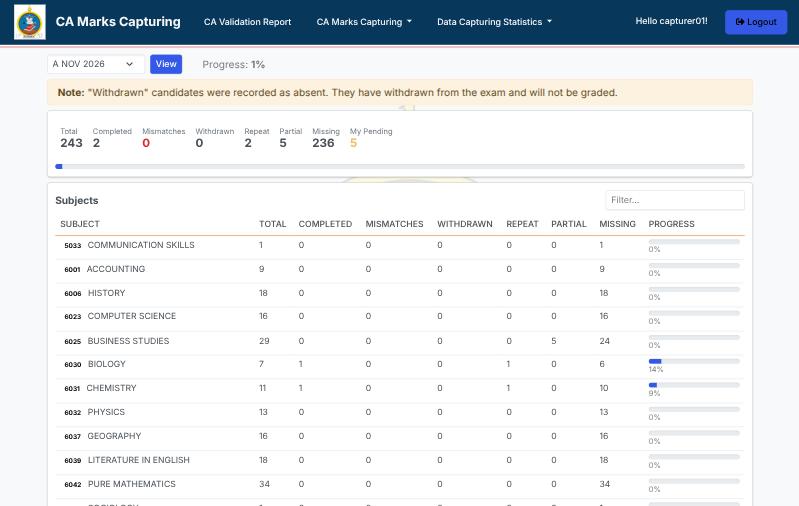
Centre Head Guide
Candidate and staff administration, marksheets, validation, progress and final marks approval.
1. Before you start
This manual is for the centre head (the school head account, with the role CentreAdmin). Centre heads have every feature that capturers and verifiers have, plus user management and the final approval of the centre's CA marks.
| You can | Where |
|---|---|
| Sign in and read the home page | Login |
| View, search and amend candidates, and capture pirates | Candidates |
| Create, edit, deactivate and reset passwords for centre users | User List |
| Find and fix CA and CALA errors | CA Validation Report, CALA Validation Report |
| Download templates, upload marksheets and correct marks | Marksheets |
| Follow capture progress and fix gaps | Marks Capturing Statistics |
| Approve the centre's CA marks for submission | Marks Capturing Statistics → Marks Approval |
2. Signing in
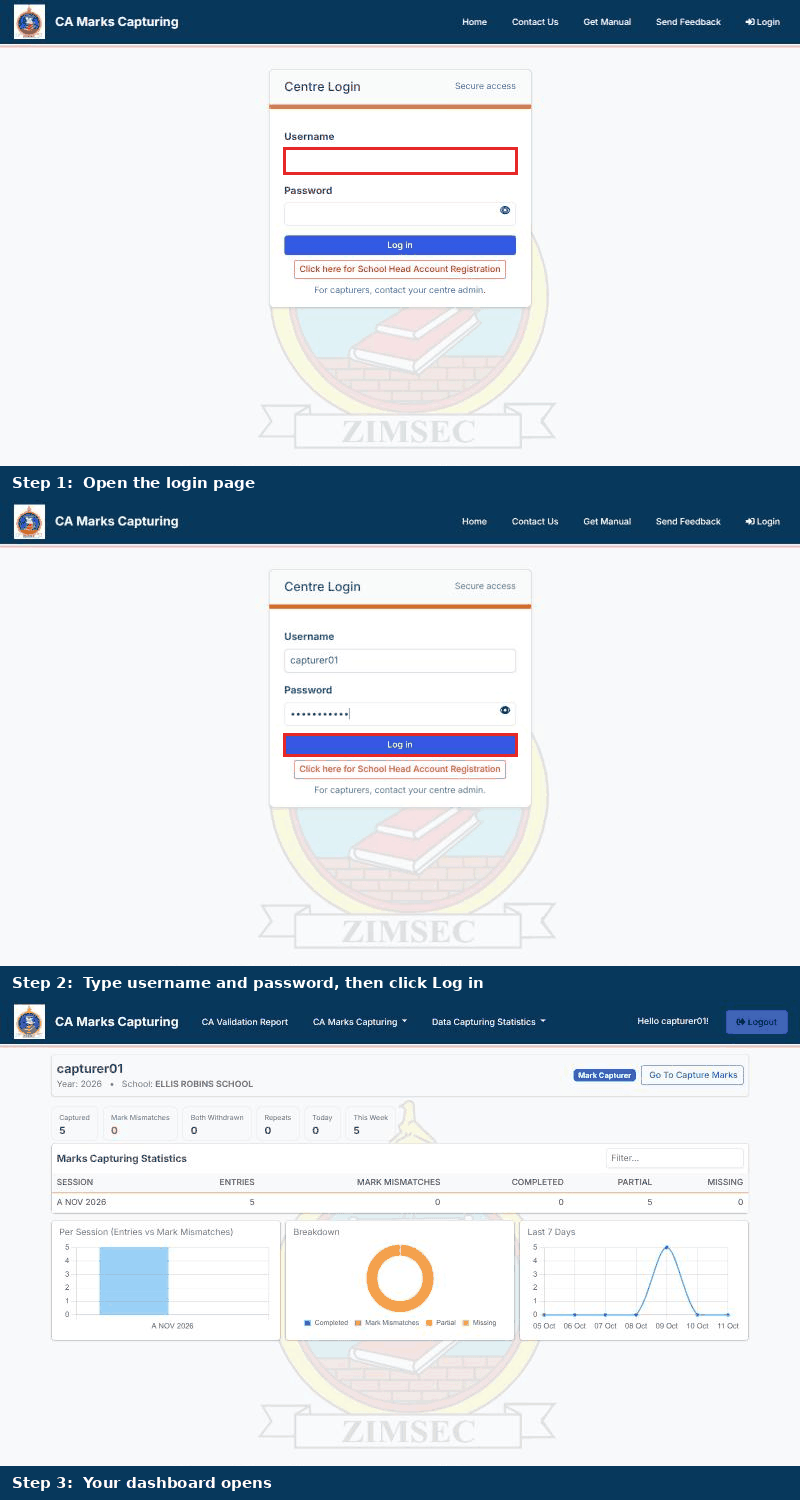
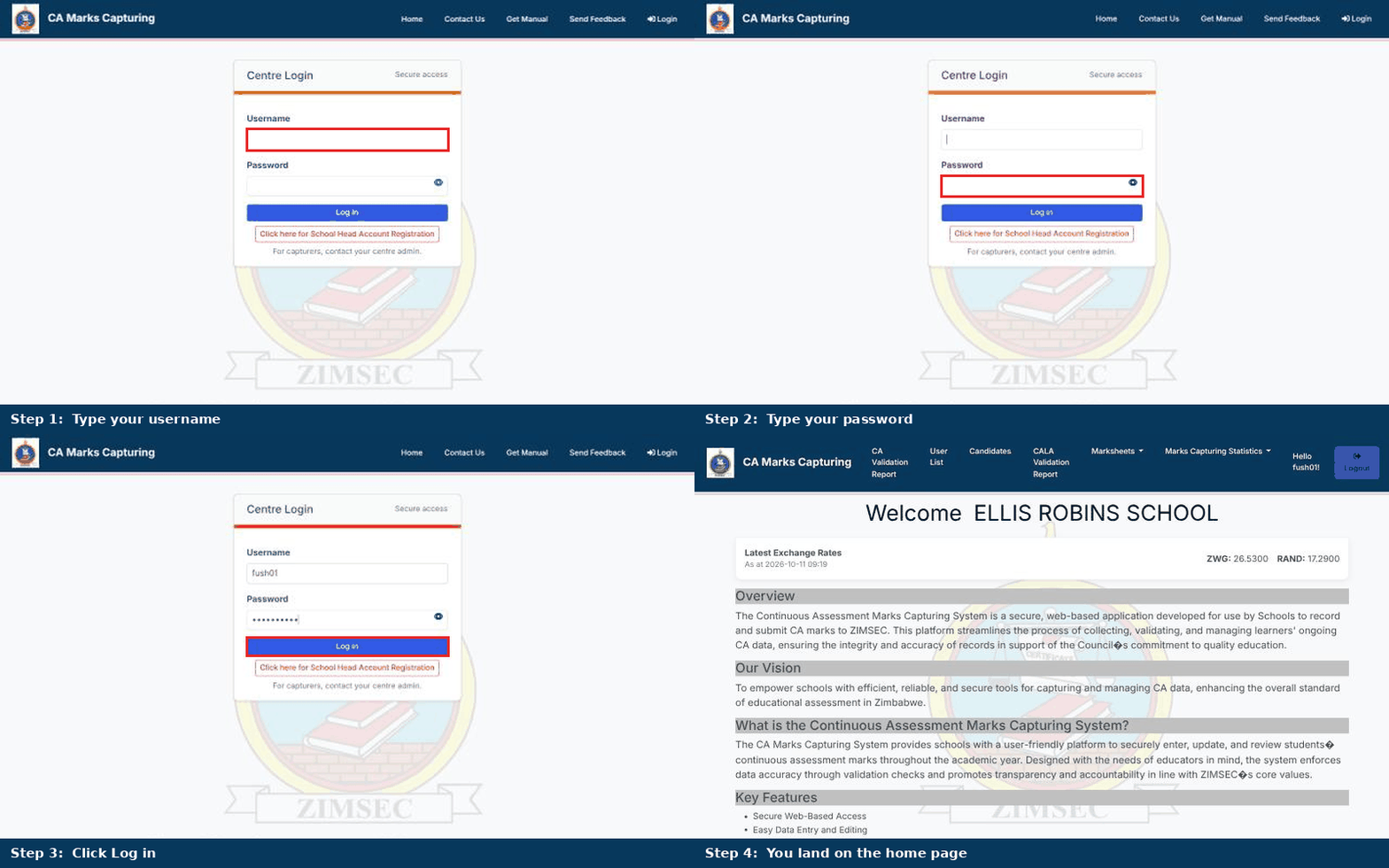
- Open the CA Marks Capturing website and click Login at the top right.
- Type your username and password.
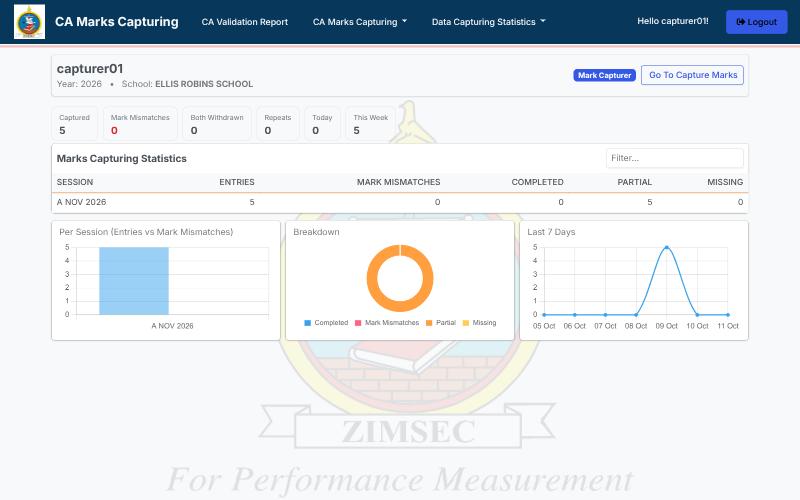
- Click Log in. You land on the home page, which greets you with your centre's name.
If you have forgotten your password, ask your Regional Office to reset it. For your own staff, you can reset their passwords from the User List.
3. The menu
The blue bar at the top is on every page. It shows your username and a Logout button on the right. Below it, a dark blue Important Notice gives the CA marks capturing closing date for each level. A level whose window has ended is labelled Closed.
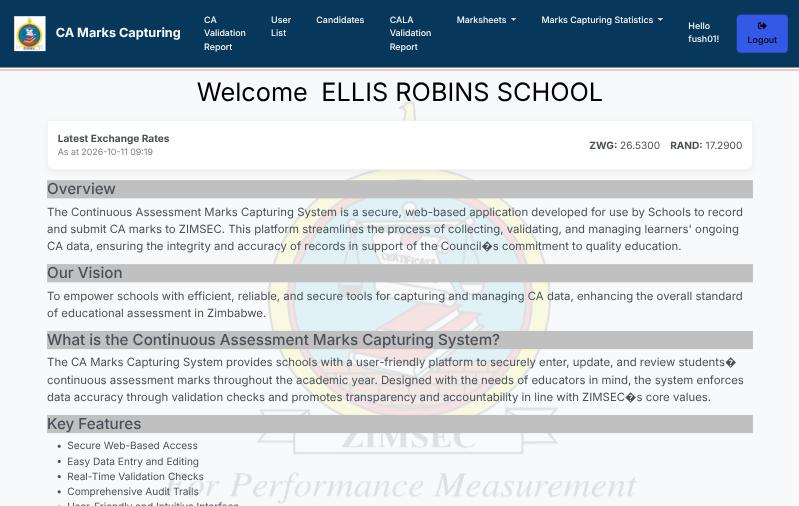
| Menu item | What it opens |
|---|---|
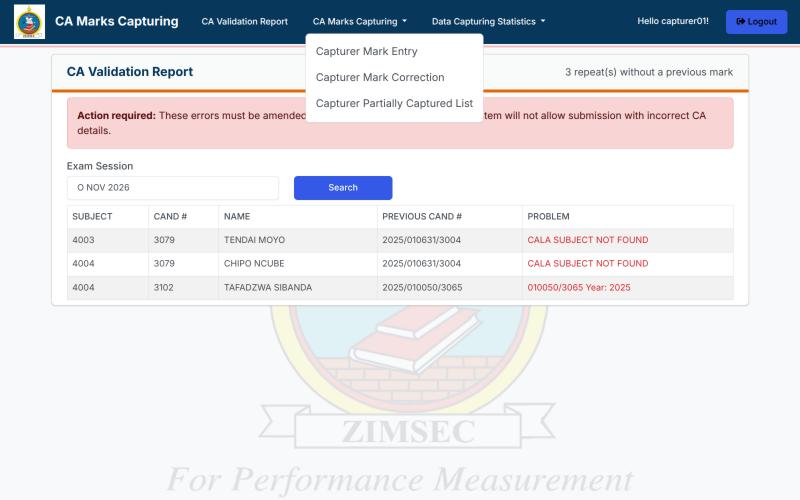
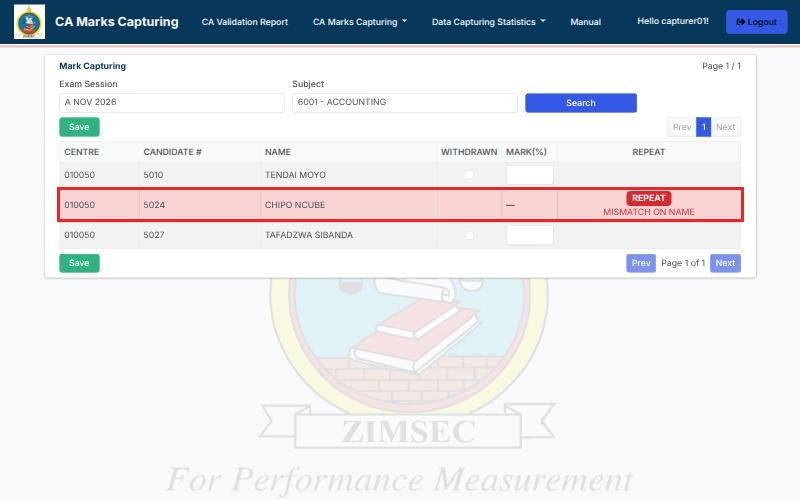
| CA Validation Report | Repeat candidates whose previous CA record cannot be matched |
| User List | Everyone who can sign in for your centre |
| Candidates | The candidate list for a session you choose |
| CALA Validation Report | Mismatches between current candidates and their previous CALA records |
| Marksheets | Download Marksheet, Upload Marksheets, Mark Correction |
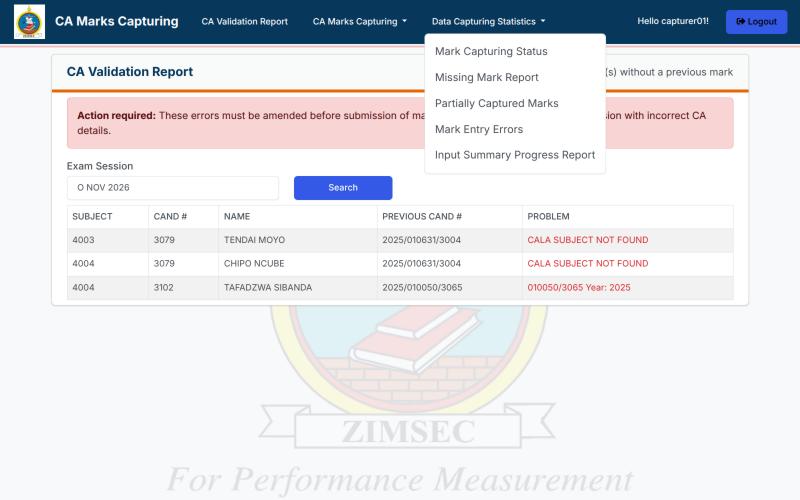
| Marks Capturing Statistics | Mark Capturing Status, Missing Mark Report, Partially Captured Marks, Mark Entry Errors, Input Summary Progress Report, Marks Approval |
| Manual | This manual |
4. Candidates
Open the candidate list
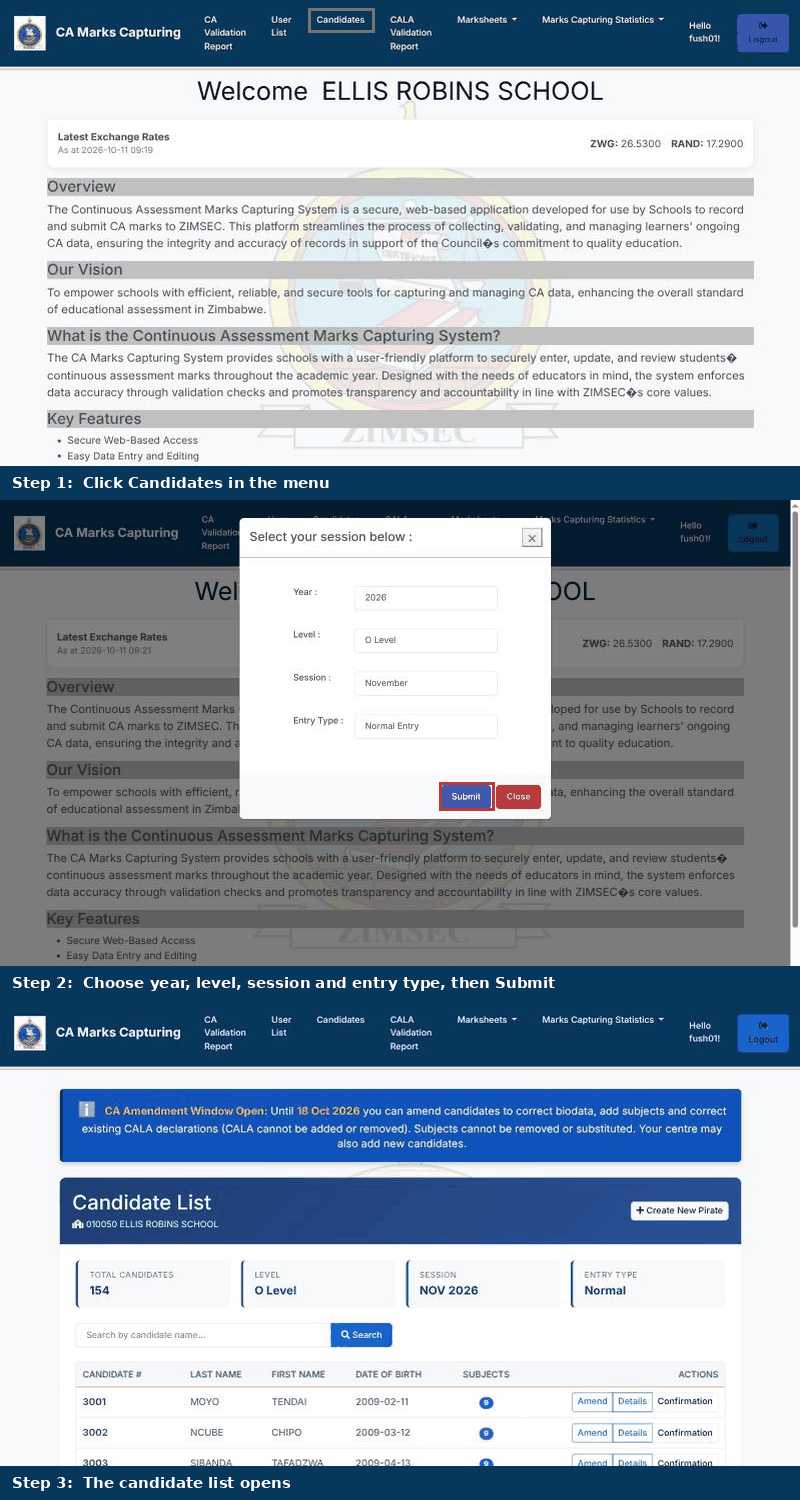
- Click Candidates in the menu.
- Choose the year, level, session and entry type. For most work this is the current year, Normal Entry.
- Click Submit.
Read the list
The page shows the total number of candidates, the level, the session and the entry type. A blue banner at the top tells you whether an amendment window is open and when it closes. Create Pirate Candidate, at the top right, registers a pirate (see Pirates). Each row shows the candidate number, name, date of birth and the number of subjects, with these buttons:
- Amend opens the amendment screen. It appears only while an amendment window is open.
- Add Pirate Subject adds pirate subjects to that candidate (see Pirates).
- Details shows everything held about the candidate.
- Confirmation opens the candidate's confirmation of entry.
Badges beside the candidate number flag candidates that need attention:
| Badge | Meaning |
|---|---|
| Amended | The candidate has been amended. The Details page shows what changed. |
| Pirate | The candidate has at least one subject captured as a pirate. |
| Repeat mismatch | A CALA declaration does not match the previous sitting. Amend the biodata or the declaration. |
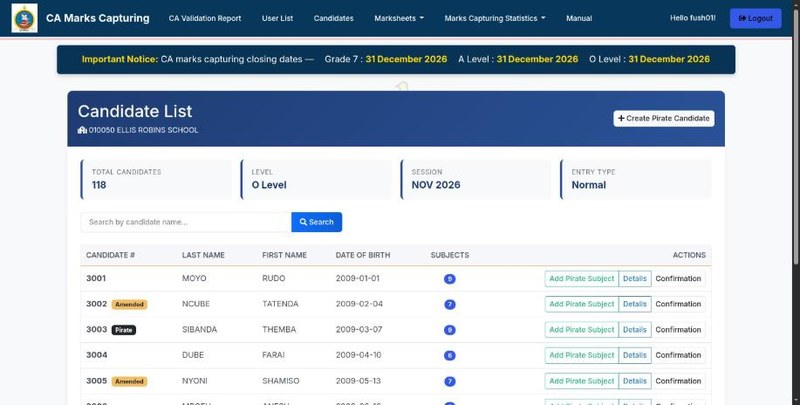
To find someone, type part of the candidate's name into the search box and click Search.
Candidate details
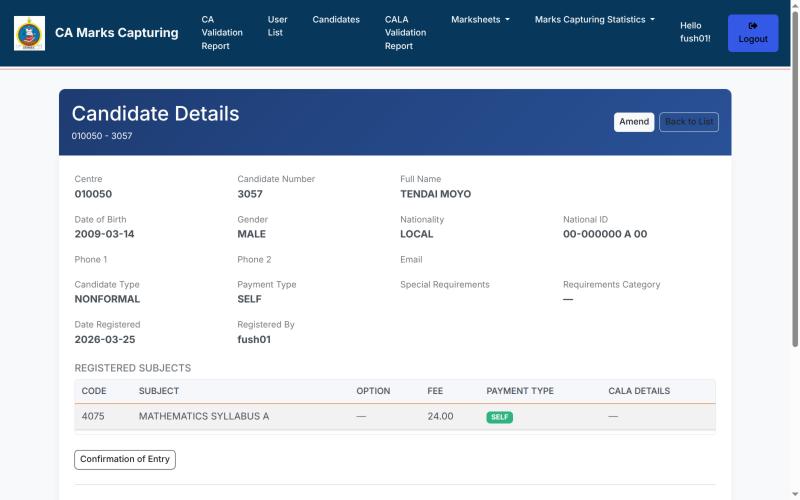
The Details page lists biodata, registered subjects with their CALA details, and an Amendment history that shows every change, who made it and when. Use it to check what has already been amended.
5. Amending a candidate
Amendments are possible only while an amendment window is open. When the CA Amendment window is open, the banner on the candidate list shows its closing date. Outside the window the system rejects changes.
What you can and cannot change in the CA window
| Item | Allowed? |
|---|---|
| Surname, first name, date of birth | Yes, correct them |
| Add a subject | Not on this screen. Use Add Pirate Subject on the candidate list (see Pirates) |
| Correct an existing CALA declaration | Yes |
| Add CALA to a subject that has none | No |
| Remove a CALA declaration | No, except where the match status says Subject not found in previous sitting |
| Change a CALA declaration that has matched | No |
| Remove or replace a registered subject | No |
| Gender, candidate type, national ID, contact details, special requirements | No, these fields are locked |
Subjects
The amendment screen no longer has a button for adding subjects. To add a subject to an existing candidate, click Add Pirate Subject on the candidate's row in the list (see Pirates). Registered subjects cannot be removed or replaced here.
Correct a CALA declaration
The CALA-R circle beside a subject is available only when that subject already has CALA details. Click it, enter the previous year, previous centre number and previous candidate number, then click Ok. The system checks the details against the previous record. If they do not match, your existing declaration stays as it was. The Remove CA button is not available during CA amendments, except for a subject whose match status is Subject not found in previous sitting.
CA match status
During the CA amendment window the last column of the subject table is headed CA Validation. For every repeat subject it shows whether the CA mark sheet matched the declaration to the previous sitting, in the words used by the CA mark sheet.
| Status shown | What it means and what to do |
|---|---|
| Matched. Previous CA mark: n | The declaration matched and the previous mark was found. It cannot be changed. |
| Previous candidate not found | No candidate exists under the declared year, centre and number. Correct the CALA details. |
| Subject not found in previous sitting | The candidate exists but did not sit this subject. Correct the CALA details, or remove the CALA declaration. |
| No CA mark in previous sitting | The previous sitting has no CA mark for this subject. Check the details with the previous centre. |
| Details do not match previous sitting | The name or date of birth differs from the previous record. Correct the biodata or the CALA details. |
| No previous candidate number supplied | The declaration is incomplete. Enter the full CALA details. |
6. Pirates
A pirate is a candidate who sat the exam but is missing from the centre's entry, or a candidate who sat a subject they were not entered for. Pirates are captured on their own page, which is open under Normal Entry until the centre's CA marks are approved. There are two ways in from the candidate list:
- Create Pirate Candidate, at the top right, opens the page for a new candidate.
- Add Pirate Subject, on a candidate's row, opens the same page for that candidate so you can add subjects.
Create a pirate candidate
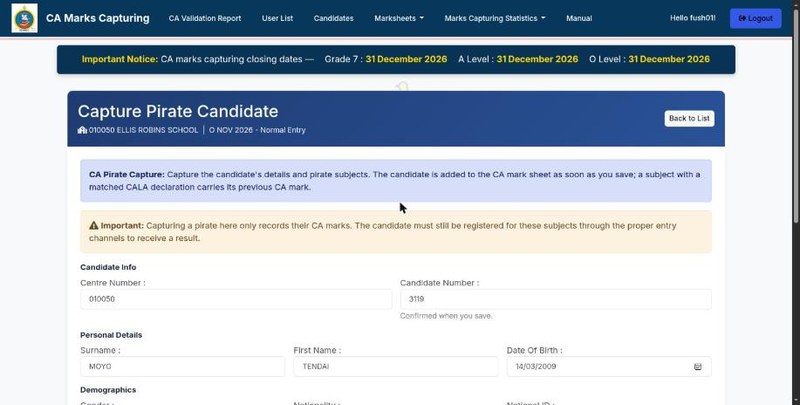
- On the candidate list, click Create Pirate Candidate. The Capture Pirate Candidate page opens. The centre number is filled in, and the candidate number is given when you save.
- Fill in the personal details, demographics, contact details and candidate type, as on the normal entry form. The payment type is always SELF, and no fee is charged.
- Click Add Pirate Subject. The subject picker opens. Tick the subjects and click Ok. Subjects that clash are greyed out, and the usual subject limits apply.
- Choose an option for any subject that has options. For a repeat subject, enter the CALA details (previous year, previous centre number and previous candidate number). The system checks them against the previous sitting.
- Click Save. The candidate is added to the CA mark sheet straight away. A subject whose CALA declaration matched carries its previous CA mark.
Add a pirate subject to an existing candidate
- On the candidate list, click Add Pirate Subject on the candidate's row.
- Check the candidate. The personal details are shown but cannot be changed here. Use Amend to correct biodata.
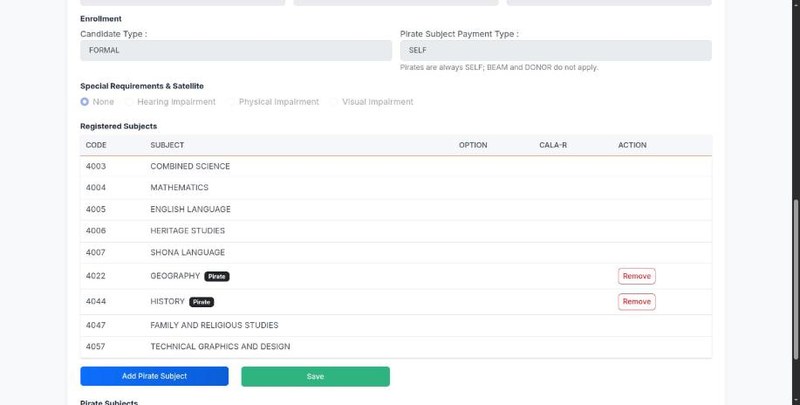
- Under Registered Subjects you see the subjects the candidate already has. Subjects added earlier as pirates have a Pirate badge.
- Click Add Pirate Subject, tick the new subjects and click Ok. The candidate's registered subjects are ticked with a padlock. The new subjects are listed under Pirate Subjects.
- Click Save. The new subjects appear on the CA mark sheet straight away.
Removing a pirate subject
A subject with the Pirate badge has a Remove button under Registered Subjects. It works only until a CA mark has been captured for that subject. Registered (non-pirate) subjects cannot be removed, and a candidate's only subject cannot be removed.
7. User List
Click User List to see everyone who can sign in for your centre: capturers, verifiers, centre users and other centre admins. Each row shows the name, username, email, phone, role and whether the account is active.
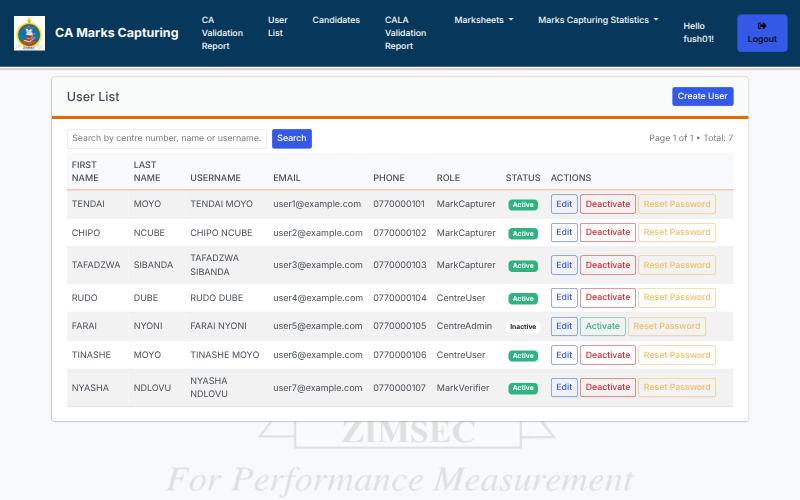
| Button | What it does |
|---|---|
| Edit | Open the person's account to change their details |
| Deactivate / Activate | Stop or restore someone's access without deleting the account. Use it when staff leave |
| Reset Password | Issue a new password when someone forgets theirs |
| Search | Find a user by centre number, name or username |
Create a user
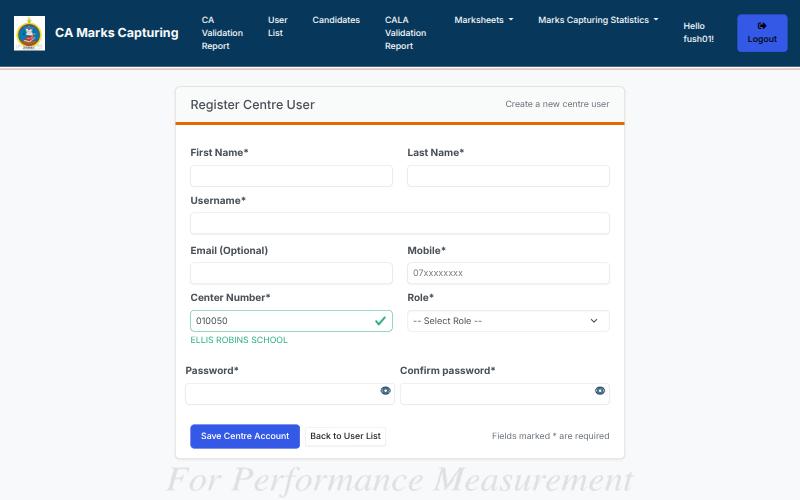
- On the User List, click Create User.
- Fill in first name, last name, username and mobile number. Email is optional. The centre number is filled in for you.
- Choose the Role: Mark Capturer or Mark Verifier for staff who capture CA marks. Enter and confirm a password, then click Save Centre Account.
8. Validation reports
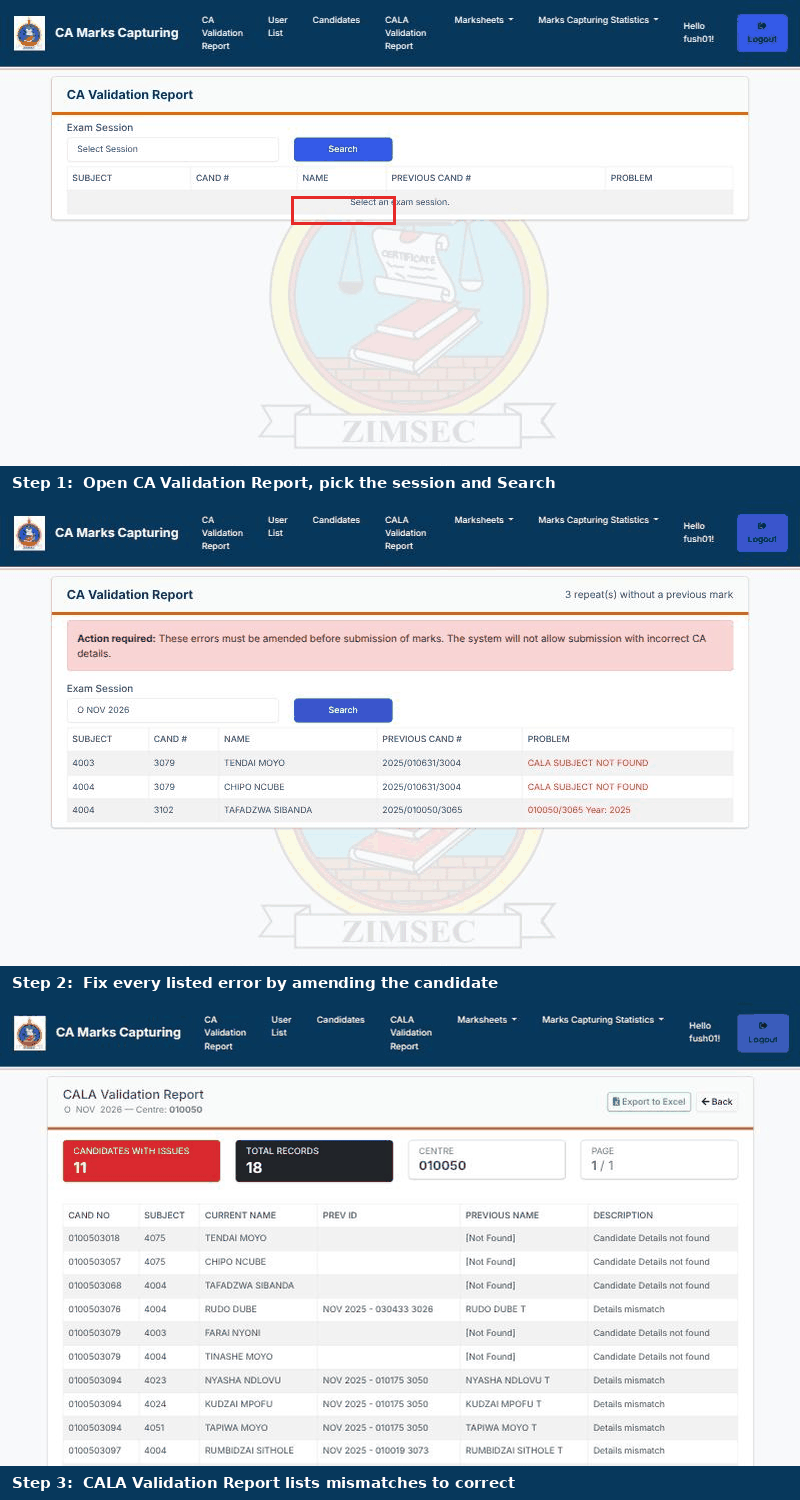
Both reports list problems that must be fixed before the centre's marks can be submitted. Fix them by amending the candidate (see section 5), then run the report again.
CA Validation Report
- Click CA Validation Report.
- Choose the exam session and click Search.
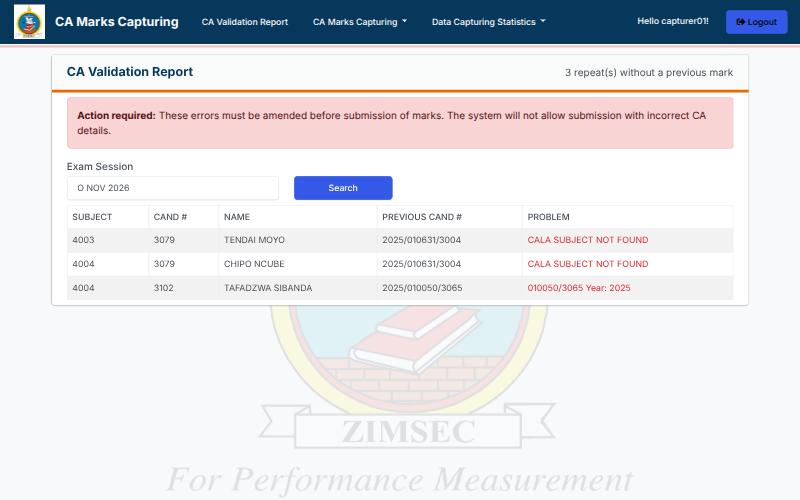
The page lists each repeat candidate whose previous CA record cannot be found, with the subject, candidate number, previous candidate number and the problem. A red message reminds you that the system will not allow submission with incorrect CA details.
CALA Validation Report
- Click CALA Validation Report.
- Choose the session and click Run Validation.
The report shows how many candidates have issues and how many records were checked. Each row gives the candidate, subject, previous ID, previous name and a description such as Candidate Details not found or Details mismatch. Click Export to Excel to share the list with your staff.
9. Marksheets
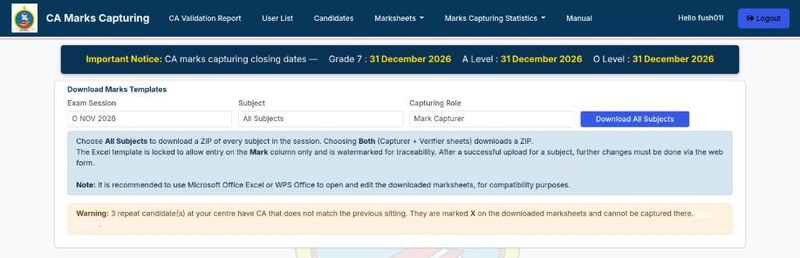
Download a marksheet
- Open Marksheets → Download Marksheet.
- Choose the Exam Session.
- In Subject, choose All Subjects or one specific subject.
- Choose the Capturing Role.
- Click Download (the button reads Download All Subjects when All Subjects is selected). If you chose All Subjects, confirm the message that appears.
The role can be Mark Capturer, Mark Verifier or Both, which puts a capturer sheet and a verifier sheet for each subject in the download.
What you receive depends on your choices: one subject with one role downloads a single Excel file. All Subjects, or Both, downloads a ZIP file containing one Excel file per subject and role. Extract the ZIP before uploading, because ZIP files cannot be uploaded.
Upload marksheets
- Open Marksheets → Upload Marksheets.
- Click Choose files and select one or more completed
.xlsxtemplates. To select several, hold Ctrl (or Shift) while clicking, or select them all in the folder. - Click Upload. Use Cancel to leave without uploading.
- Review the page that appears. Each file has its own card showing the session, subject, role and counts of candidates, marks, withdrawn (A), repeat, CA mismatch (X) and blank. A card is marked Ready, Blank marks or Rejected.
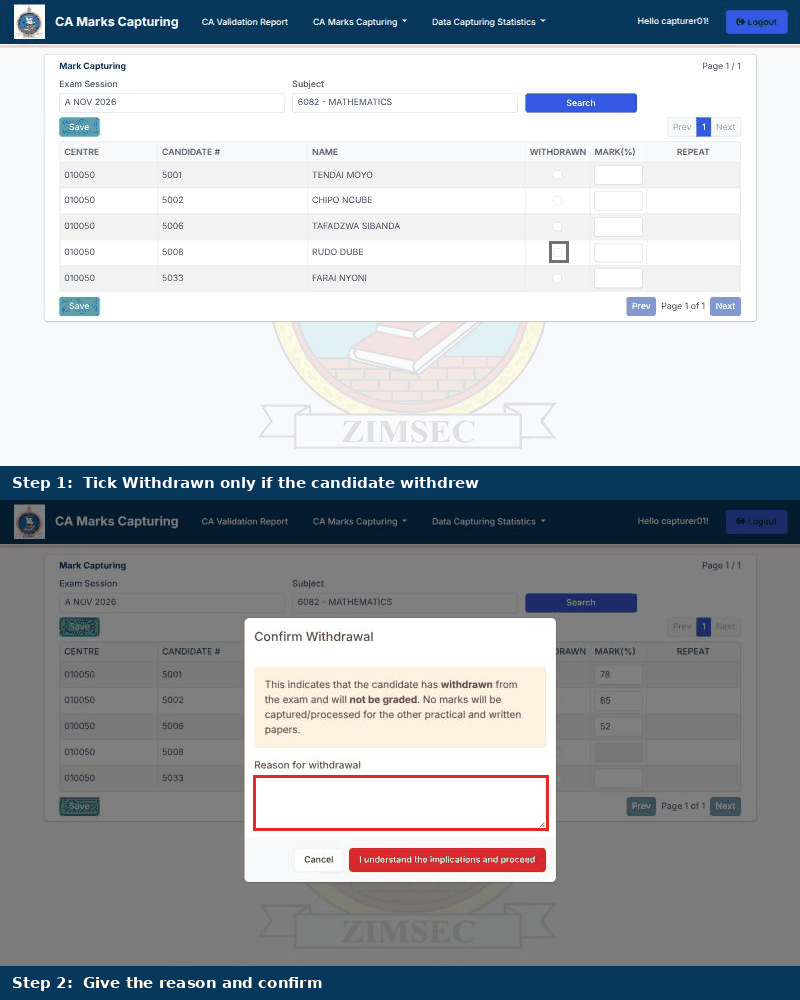
- If a file has candidates marked A, its card lists them. Type a Reason for withdrawal (at least 5 characters) for each one, and tick I understand the implications and confirm that the candidate(s) above have withdrawn.
- If a Ready file already has marks saved for that role, you can tick Overwrite existing marks for that file.
- Click Confirm & Save to save all Ready files at once.
- Read the result page. Every file has its own report: Uploaded or Failed, with the number of rows processed, inserted, updated and skipped, and the reason for any skipped row or failure.
.xlsx file (ZIP files are not accepted), is damaged, belongs to another centre, belongs to a centre whose marks are already approved, has a mark outside 0–100, or duplicates another selected file for the same subject and role. A file with blank marks is not uploaded until every candidate has a mark or an A for withdrawn. A file with withdrawn candidates is not saved without the confirmation and a reason for each one. Repeat rows (with a previous mark or X) are skipped, because their CA comes from the previous sitting. Fix the file and upload it again.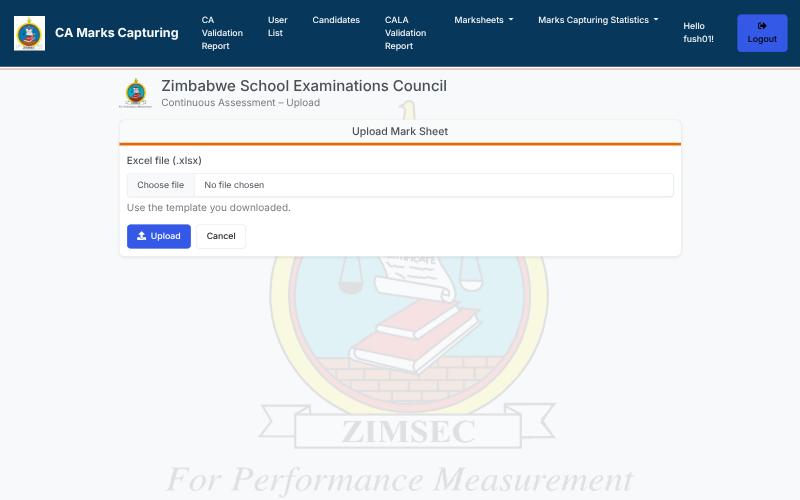
Mark Correction
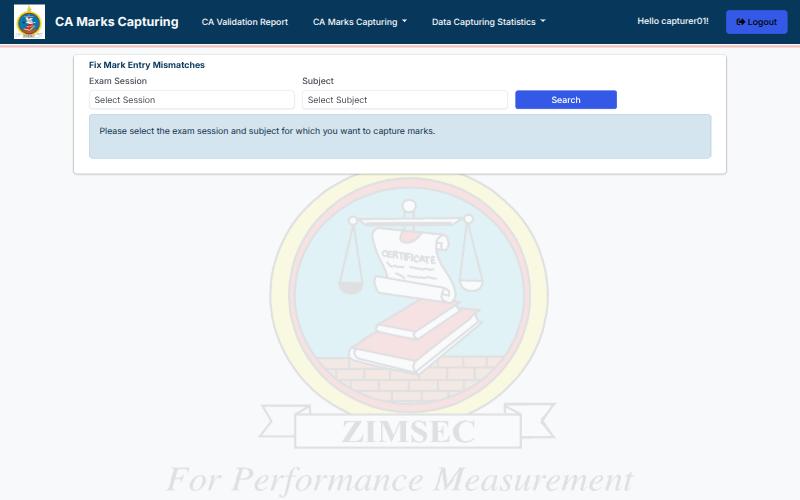
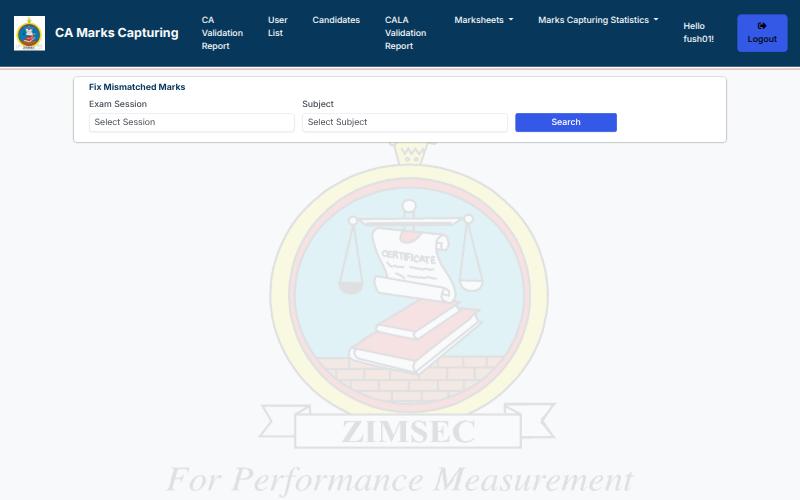
Open Marksheets → Mark Correction, choose the session and subject and click Search. The page, titled Fix Mismatched Marks, lists marks where the capturer and verifier entries disagree so that you can settle them.
10. Marks Capturing Statistics
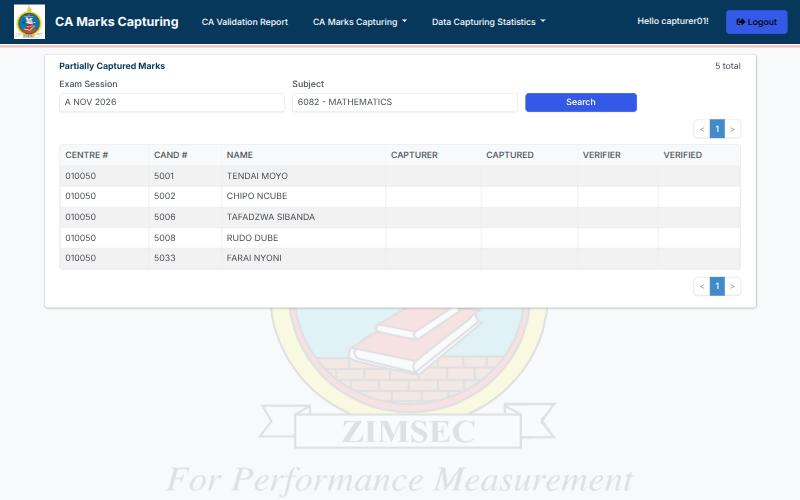
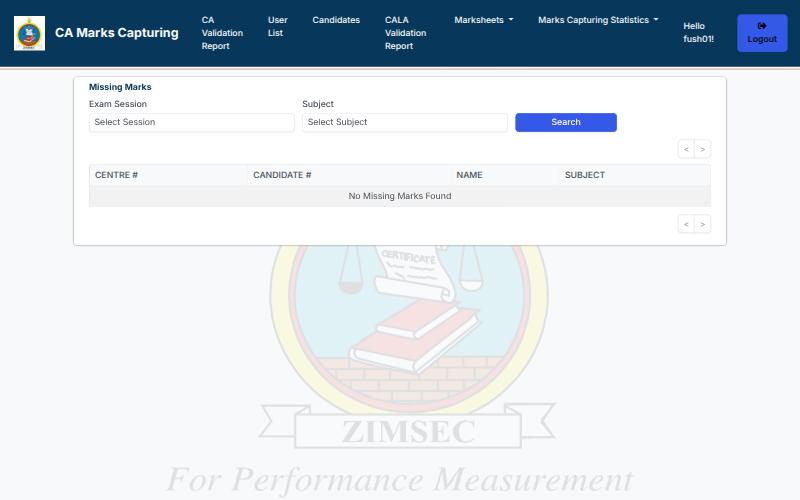
These reports show how far capturing has got and where it is stuck. For each one, choose the session (and a subject where asked) and click Search.
| Report | Use it to |
|---|---|
| Mark Capturing Status | See, per candidate, who captured and who verified a mark |
| Missing Mark Report | List candidates with no mark for a subject |
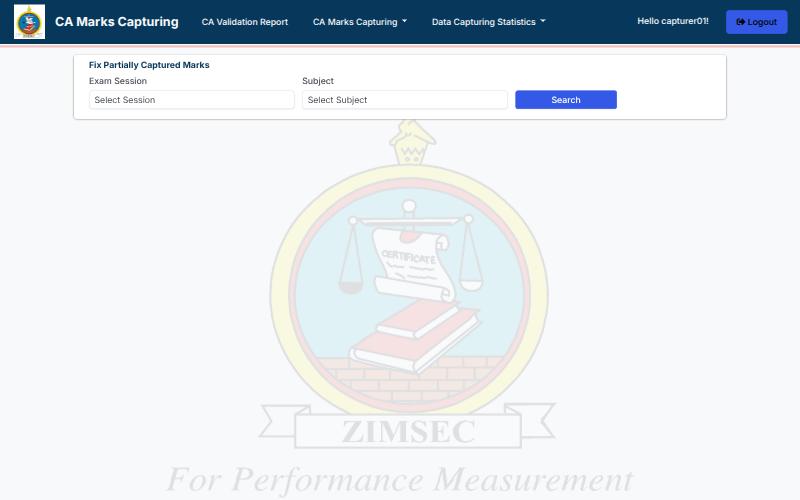
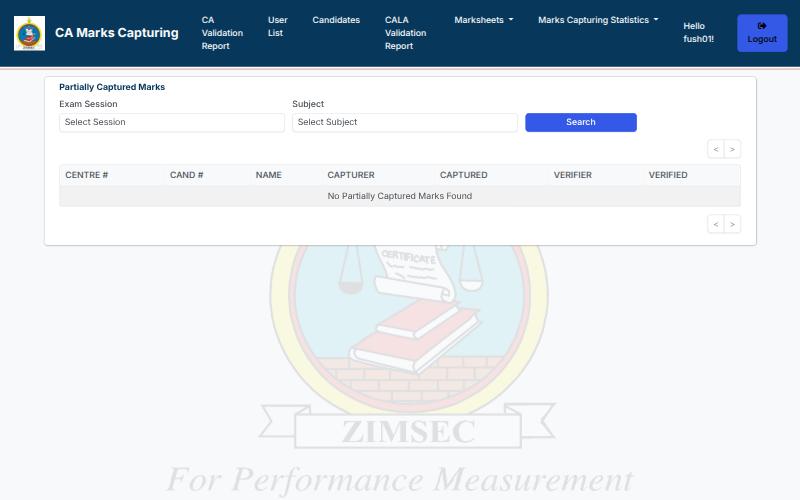
| Partially Captured Marks | Find candidates whose marks have been captured but not yet fully verified |
| Mark Entry Errors | Review marks that failed the system's checks, so they can be corrected |
| Input Summary Progress Report | Follow capture progress for each subject, including unresolved repeats |
| Marks Approval | Review the centre totals and approve (section 11) |
11. Marks Approval
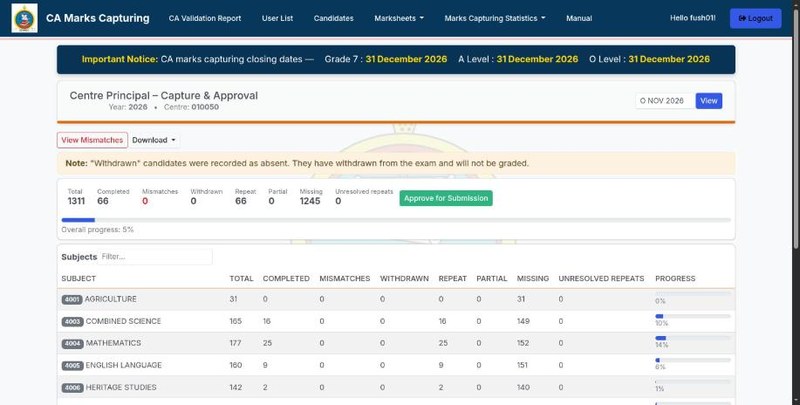
Approving tells ZIMSEC that the centre's CA marks are final. Only the centre head can do it.
- Open Marks Capturing Statistics → Marks Approval.
- Choose the session and click View.
- Check the totals: Total, Completed, Mismatches, Withdrawn, Repeat, Unresolved repeats, Partial and Missing, with the overall progress bar and a line for every subject. Use View Mismatches to see mismatched marks and Download to keep a copy.
- When everything is complete, click Approve for Submission.
12. Messages and help
| You see | What it means and what to do |
|---|---|
| CA marks for this session have already been approved. No further changes can be made. | The centre has approved. Contact your Regional Office if a change is essential. |
| The amendment window is not open for this exam session. | Wait for the window to open, or ask your Regional Office about the dates. |
| Subjects cannot be removed during CA amendments | Registered subjects stay in place. Add subjects with Add Pirate Subject on the candidate list. |
| CALA cannot be added / removed during CA amendments | Only existing CALA details can be corrected. Removal is allowed only when the status is Subject not found in previous sitting. |
| The CALA for ... matched the previous sitting and cannot be changed. | The declaration is already correct. Leave it as it is. |
| The CALA for ... did not match the previous sitting. Amend the CALA details before saving. | Correct the CALA details using the CALA-R circle, then save. |
| O Level has a maximum of 9 subjects. | The candidate is at the limit. No more subjects can be added. |
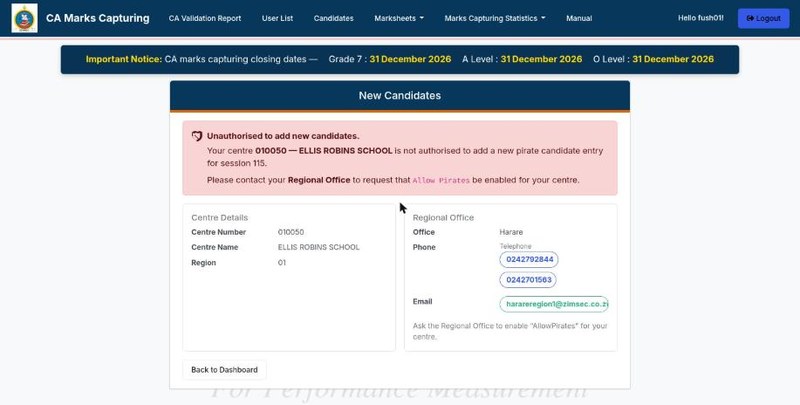
| Your centre is not authorised to add a new pirate candidate entry | Ask your Regional Office to enable Allow Pirates for your centre. |
| CA marks for this session have already been approved. No further pirates can be captured. | The centre has approved. Contact your Regional Office if a pirate is essential. |
| CA marks have already been captured for ..., so it cannot be removed. | A pirate subject with captured marks stays. Contact your Regional Office if it was added by mistake. |
| Capturer or Verifier account required | Someone tried to sign in with a Centre User account. Create a Mark Capturer or Mark Verifier account for them. |
| Please confirm the withdrawal of the candidates marked A and re-upload this file. | Upload the file again, tick the confirmation box and give a reason for each withdrawn candidate. |
| A reason for withdrawal (at least 5 characters) is required for ... candidate(s). | Upload the file again and type a reason for every candidate marked A. |
| Action required: These errors must be amended before submission of marks | Fix the items in the CA Validation Report, then approve. |
For anything else, use Contact Us or Send Feedback in the menu on the public pages, or contact your Regional Office.